

Importing Fonts & Styling Text
Getting your custom fonts into Gameface is straightforward, but Gameface scopes and falls back differently than a standard web browser.
This guide explains how fonts are shared between views and when they are released, how to architect reliable font fallbacks, and how to build high-contrast text effects that keep a HUD readable against complex 3D environments.
How Gameface Renders Text: SDF, Raster, and Path Tessellation
Section titled “How Gameface Renders Text: SDF, Raster, and Path Tessellation”Before loading custom fonts, it is useful to understand which rendering mode Gameface will use for your text. The engine does not use a single path - it chooses between three strategies based on font size:
| Font size | Rendering mode | Key behavior |
|---|---|---|
| Any size (default) | SDF glyph rendering | Glyphs baked at 32px, 52px, or 72px; upscaled via distance field math |
Any size (opt-in via @font-face) | Raster glyph rendering | Glyphs CPU-rasterized at exact pixel size; separate glyph per size |
| Above 256px | Path tessellation | Glyph outlines tessellated as geometry; regenerated every frame |
SDF Rendering and Size Tiers
Section titled “SDF Rendering and Size Tiers”Most text in Gameface uses Signed Distance Field (SDF) rendering. The engine bakes each glyph at one of three fixed sizes (32px, 52px, or 72px), then uses distance field math to scale it without regenerating glyph data. This is the fast path and the reason you can animate font-size without triggering expensive glyph uploads every frame.
The spread value (10% of the generation size - 4px, 6px, or 8px) controls how sharp or soft edges appear when scaling. The engine automatically picks the closest larger tier for a given font size.
Fixing “Melted” Custom Fonts
Section titled “Fixing “Melted” Custom Fonts”SDF rendering has a known weakness with decorative or intricate fonts. When a font has fine serifs, tight ink traps, or complex stroke interactions, the SDF approximation smooths those details into rounded blobs - the font looks “melted” or mushy rather than sharp. This is a deliberate trade-off, not a bug.
The fix is coh-font-sdf: off inside the @font-face rule for the affected font:
@font-face { font-family: 'OrnateTitleFont'; src: url('OrnateTitleFont.ttf'); coh-font-sdf: off; /* Forces CPU rasterization at exact pixel sizes */}With raster rendering active, Gameface generates one glyph per character per pixel size, producing pixel-accurate results where fine details survive.
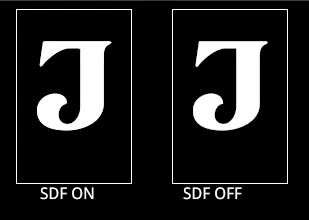
The trade-off is GPU atlas memory: each size requires its own atlas entry rather than one shared baked glyph. Reserve coh-font-sdf: off for fonts where the quality loss is genuinely noticeable - display fonts, logos, and title cards rather than body copy.
Large Scale Text: Path Tessellation Above 256px
Section titled “Large Scale Text: Path Tessellation Above 256px”When text renders above 256px, Gameface switches to path tessellation. Each glyph outline is tessellated as geometric path data drawn directly as 2D geometry - sharp at any size, but regenerated from scratch every frame.
If the visual accuracy of giant text is not critical (a large background watermark or a score counter), disable tessellation with text-rendering: optimizeSpeed:
.score-display { font-size: 320px; text-rendering: optimizeSpeed; /* Falls back to SDF - no per-frame tessellation */}This makes sense when the size is transient (an animation briefly passing through 256px) or when the text is reading-functional but not decorative. For large static display text that is a visual centrepiece, keep path tessellation on and accept the per-frame cost.
Loading Custom Fonts (The Global Scope)
Section titled “Loading Custom Fonts (The Global Scope)”Just like standard web development, the recommended way to load and use custom fonts in Gameface is through the CSS @font-face declaration. Gameface supports standard TrueType (.ttf) and OpenType (.otf) fonts, along with their collection formats (.ttc, .otc).
Exactly as you would in a standard browser, you must explicitly define separate @font-face blocks for different font weights and styles so the engine knows how to properly map them.
/* 1. Registering a standard TrueType font for headings */@font-face {    font-family: 'SciFi-Header';    src: url('../fonts/SciFi-Header.ttf');}
/* 2. Registering an OpenType font for body text */@font-face {    font-family: 'Roboto';    src: url('../fonts/Roboto-Regular.otf');    font-weight: normal;}
/* 3. Registering the Bold variant explicitly */@font-face {    font-family: 'Roboto';    src: url('../fonts/Roboto-Bold.otf');    font-weight: bold;}
The Gameface Difference: Fonts Are Shared Between Views
Section titled “The Gameface Difference: Fonts Are Shared Between Views”In a standard web browser, fonts are scoped to the page you are currently viewing. Navigate to a new HTML page and the browser unloads the old fonts and parses the new ones, even when both pages asked for the same file.
Gameface does not repeat that work. A loaded font is shared by every view that uses it , and Gameface tracks which views those are. The font stays in memory while at least one of those views exists, and is released when the last one is destroyed.
Sharing between coexisting views therefore costs nothing. A Main Menu and an in-game HUD that both use SciFi-Header while both are alive share one parsed copy.
Fonts do not outlive the views referencing them. Destroying the only view that uses SciFi-Header releases the font, and a view created afterwards pays the full load and parse cost again. Views that are repeatedly torn down and rebuilt reload their fonts on each cycle.
Understanding Font Fallbacks
Section titled “Understanding Font Fallbacks”In game UI, especially when dealing with player names or global chat, a user might type a character (like a specific Kanji or an Emoji) that doesn’t exist in your primary font.
Gameface supports standard CSS per-character font fallbacks. You can specify a list of fonts, and the engine will seamlessly substitute missing characters with the next available font in the list.
.chat-message { /* If Roboto is missing a character, Gameface checks Noto Sans CJK, then an Emoji font */ font-family: 'Roboto', 'Noto Sans CJK', 'EmojiFont';}Engine-Specific Fallback Rules
Section titled “Engine-Specific Fallback Rules”While CSS handles the basics, Gameface has a few strict rules regarding how it matches those fallback fonts:
- Style Fallbacks are Unsupported: Gameface won’t automatically match fonts with the same family name but different styles (like Italic or Oblique). These must be specified explicitly.
- Generic Families: Gameface recognizes standard generic keywords (
serif,sans-serif,monospace), but it maps them to a specific custom font defined by your engineering team via the C++cohtml::SystemSettings::GenericFontFamilyNameFontoption. - The Last Resort: If all CSS fallbacks fail, Gameface embeds a minimal “last resort” font that renders standard ASCII characters and displays a square symbol for missing Unicode characters.
Global Fallbacks via C++
Section titled “Global Fallbacks via C++”If you are displaying third-party content (like an RSS feed or cross-platform player profiles) and do not have total control over the CSS, Gameface provides a powerful native override.
Your engineering team can use the C++ API cohtml::View::SetAdditionalFontFallbacks to specify global fallback font families. This acts as an invisible safety net, automatically appending these native fallbacks to the very end of any font-family list defined in your CSS.
Styling High-Contrast HUD Text
Section titled “Styling High-Contrast HUD Text”A common challenge in game UI is ensuring that white text remains readable when the camera pans over a bright 3D environment.
To solve this, we can utilize the CSS text-shadow property.
Because Gameface’s layout engine handles these standard properties natively, you can create complex text effects without writing custom shaders.
Here are three essential text styling techniques for game UIs:
1. The Heavy Drop Shadow
Section titled “1. The Heavy Drop Shadow”Great for general HUD elements, menus, and subtitles. A simple offset shadow detaches the text from the 3D world behind it.
An example of a heavy drop shadow that creates a strong contrast against bright 3D background:
<div class="map-marker">Riverheart Pool</div>.map-marker { color: white; /* offset-x | offset-y | blur-radius | color */ text-shadow: 1px 1px 10px black;}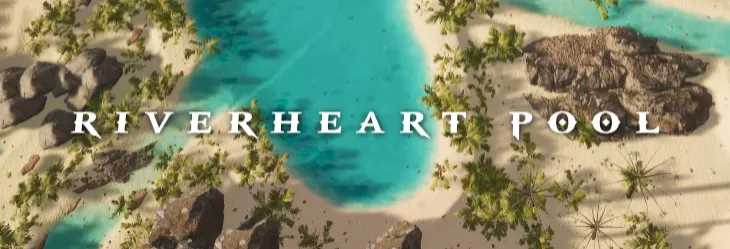
2. The Crisp Outline
Section titled “2. The Crisp Outline”Great for player names and floating combat text. Gameface supports the text-stroke CSS property, which draws a solid stroke directly around the text glyphs in a single declaration.
<div class="hud-player crisp-outline">Player One</div>.crisp-outline { color: white; text-stroke: 1px #000;}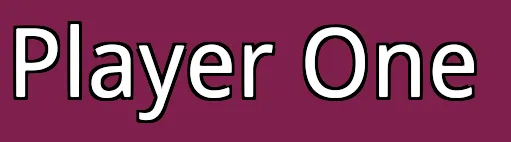
3. The Neon Glow
Section titled “3. The Neon Glow”Great for critical warnings, sci-fi themes, or active states. A zero-offset shadow with a massive blur radius creates a seamless glowing effect around the text.
An example of a neon glow effect in a sci-fi skill tree UI that blends perfectly with the other glowing elements:
<div class="skill-cost">Skill cost 2</div>.glowing-text { color: white; text-shadow: 0px 0px 1vh;}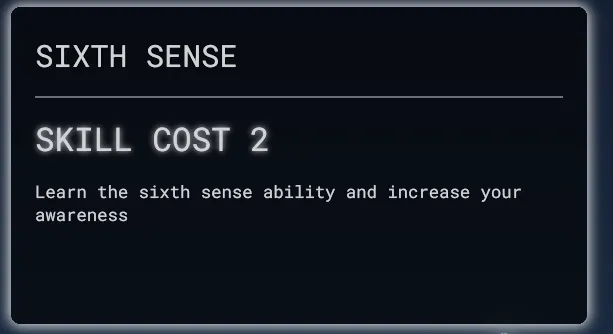
© 2026 Coherent Labs. All rights reserved.