

The Gameface Player
The Gameface Player is a standalone desktop application that lets you preview and test your game UI as you develop it. It loads HTML pages, handles input, and gives you access to profiling and debugging tools - all without needing to integrate your UI into a game engine first.
The biggest bottleneck in traditional game UI development is the engine. Waiting for Unreal or Unity to compile just to see if a widget is centered or a health bar updates ruins iteration speed. The Player removes that bottleneck: drag and drop your HTML files and see them render exactly as they would in the game.
Running the Player
Section titled “Running the Player”The Player ships with your Gameface package. Run it with the provided launcher for your platform:
- Windows:
Player.bat - macOS:
Player.sh
The Player GUI
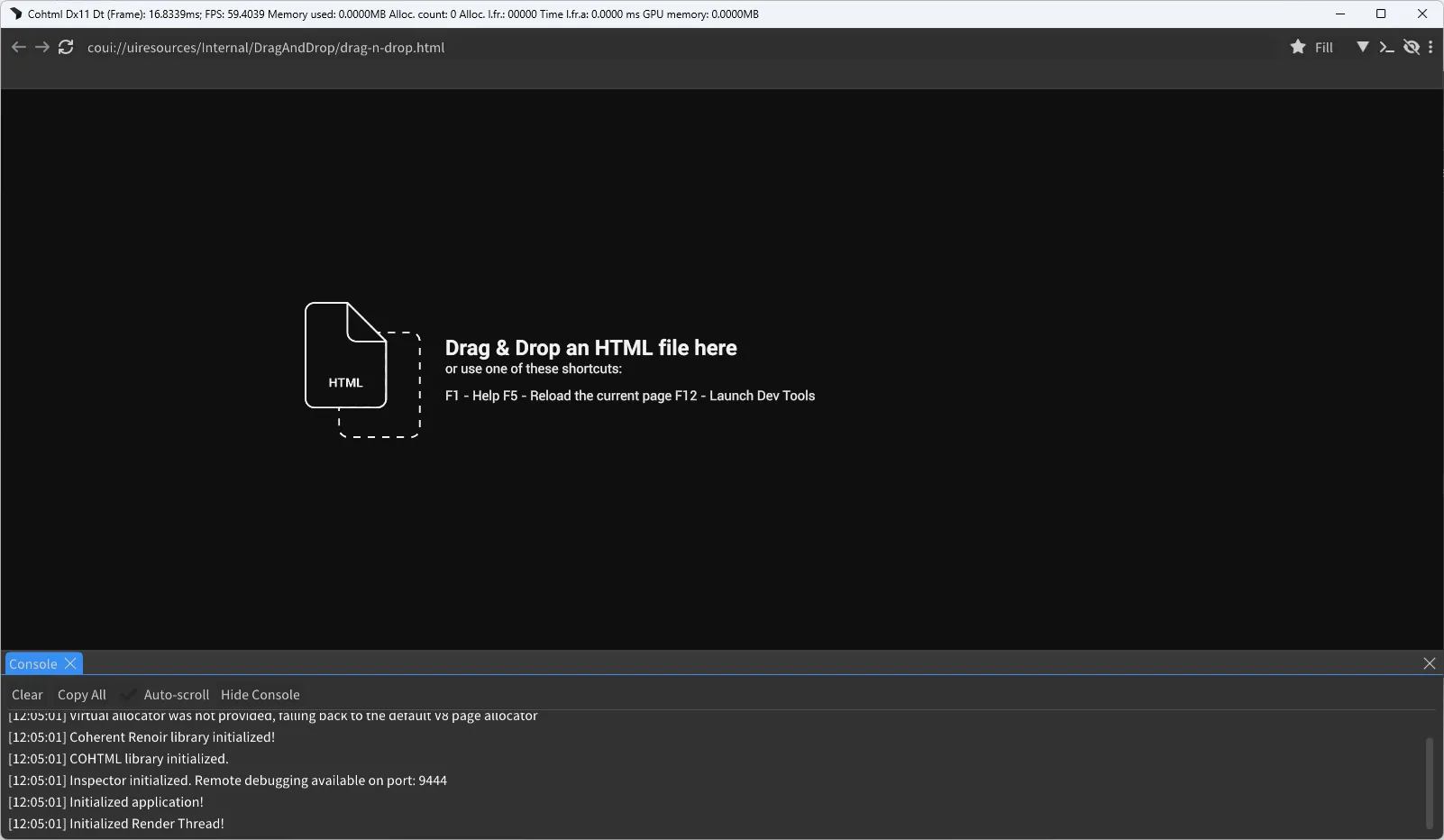
Section titled “The Player GUI”The Player provides its own window controls, live statistics and a console, so most day-to-day work does not require an external tool.
Statistics Strip
Section titled “Statistics Strip”The title bar reports frame time, FPS, memory used, allocation count, allocations and time in the last frame, and GPU memory. These update continuously, which makes rising frame time visible during editing without opening a profiler.
Toolbar
Section titled “Toolbar”The toolbar provides navigation and reload, plus four Player-specific controls:
- Address bar - loads a local file path or an
http://address.Ctrl+Lfocuses it. - Bookmarks - the star bookmarks the current page, and the bookmark bar holds frequently used views. Bookmarks are stored in
CohtmlBookmarks.htmlnext to the Player executable, in the standard HTML bookmarks format, so a file exported from any browser can be imported. - Aspect ratio - defaults to Fill , which uses the whole window. Selecting a fixed ratio letterboxes the view, which tests a 21:9 or 4:3 layout without resizing the window or changing display resolution.
- Console toggle - shows and hides the console panel.
Ctrl+F11 hides the entire GUI. The toolbar occupies space the game will not, so hide it before evaluating a layout or capturing a screenshot.
Console Panel
Section titled “Console Panel”The console docks to the bottom of the window and carries timestamped Gameface and JavaScript output, with Clear, Copy All, Auto-scroll and Hide Console controls.
Gameface reports unsupported CSS properties here, which makes this the first place to check when a rule parses but produces no visible effect. These warnings are not forwarded to Chrome DevTools, so the Player’s console is the only place they appear.
Loading UI
Section titled “Loading UI”The Player supports several ways to load your HTML pages:
- Drag and drop - drag an HTML file from your file system directly onto the Player window.
- Address bar - type a URL (local file path or
http://address) directly into the toolbar. - Bookmarks - saved pages from the bookmark bar and manager.
- HTTP and WebSockets - the Player supports loading from a local HTTP server, which enables Hot Module Replacement (HMR) with tools like Vite and Webpack. See Setting up the Gameface Stack for the full HMR setup.
Input Handling
Section titled “Input Handling”The Player forwards mouse and keyboard input to your view. On Windows, gamepad and touch input are also supported.
Keyboard Shortcuts
Section titled “Keyboard Shortcuts”| Shortcut | Action |
|---|---|
| F1 | Opens the Player documentation in your browser |
| F5 | Reloads the current view |
| Ctrl+L | Focuses the address bar |
| Ctrl+F11 | Toggles the Player GUI |
| F12 | Opens DevTools in Chrome (see below) |
| Ctrl+F12 | Toggles internal profiling at level 1 |
| Ctrl+Shift+F12 | Toggles internal profiling at level 2 |
Command-Line Options
Section titled “Command-Line Options”You can pass options to the Player at launch to control the initial URL, window size, renderer, and more:
Player.exe [OPTIONS] [positional_url...]
--url TEXT          Initial URL(s) to load (comma-separated for multiple views)--root TEXT         Sets the root directory for "coui://"--width INT         Sets the window width in pixels (default: 1280)--height INT        Sets the window height in pixels (default: 720)--renderer ENUM     Graphics renderer: dx11, dx12, opengl (default: dx11)--remote-debugging-port INT                    Port for DevTools access (default: 9444); set to -1 to disable--input ENUM        Input event type: mouse or touch (default: mouse)--default-font TEXT Sets the default font family (default: Droid Sans)--redraw-all        Repaints views every frame (useful for debugging)--config TEXT       Path to a configuration file (default: Config.toml)
Run Player.exe --help for the full option list.
Configuration File
Section titled “Configuration File”Instead of passing all options on the command line, you can use a Config.toml file. The Player looks for it in the following locations, in order of priority:
- The path specified by
--config - The current working directory
- The directory containing the Player executable
Any command-line argument can also be set in Config.toml. Command-line flags always override the file.
Font Loading
Section titled “Font Loading”The recommended way to load fonts is via @font-face in your CSS. You can also register fonts in Config.toml:
default-font = "MyFont"
[register-font]path = "URL or path to a font"family = ""sdf = "auto"style = "auto"weight = "auto"
Run Player.exe register-font --help for all available font registration options.
DevTools and Debugging
Section titled “DevTools and Debugging”Check the Player’s console first, since it carries Gameface’s own warnings alongside JavaScript output and some of those warnings never reach Chrome. DevTools then covers what the console cannot: the live DOM tree, computed styles, registered data-binding models, performance traces and the GPU debugging overlays.
Press F12 while the Player is running to open DevTools. The Player starts an HTTP server on port 9444 by default, and Chrome connects to it as a remote debugging target.
To connect:
- Start the Player with your UI loaded.
- Open Google Chrome (required - other browsers are not supported) and navigate to:
http://localhost:9444
- A list of available views appears. Click the view you want to inspect.
From there, DevTools gives you:
- Elements panel - inspect and modify the DOM tree, view computed styles, and use the Data Binding tab to inspect
data-bind-*attributes and their evaluated values. - Console - JavaScript logs and errors, plus an interactive prompt for evaluating expressions against the running view. It does not receive everything the Player’s own console shows. Warnings raised by Gameface itself, such as reports of unsupported CSS properties, appear only in the Player.
- Sources - debug JavaScript and set breakpoints.
- Performance - profile rendering: style recalculations, layout, script execution, GPU time, and paint.
- Network - inspect resource requests and WebSocket messages.
- Data Binding Models - access via More Tools (⋮) → Data Binding Models to view, edit, and export all registered data-binding models live.
- Cohtml panel - access via More Tools (⋮) → Cohtml to toggle GPU debugging options: Paint Flashing (highlights dirty regions re-evaluated each frame), Redraw Flashing (highlights elements physically repainted), Emit Rendering Metadata (links DOM nodes to GPU draw calls), and Rendering Caches configuration. These are the fastest tools for isolating rendering overhead during a debugging session.
If your UI uses absolute URLs (for example, URLs generated by Webpack or Vite), set the coui:// root via --root at startup, or convert the absolute URLs to relative ones.
For deeper coverage of profiling, layout debugging, and the Gameface-specific DevTools panels, see the Debugging, Profiling & Testing articles.
Player Overrides
Section titled “Player Overrides”The Player supports customization through a PlayerOverrides.dll . This is useful for testing features that require engine-side implementation - such as localization callbacks - without building the full game.
To set up Player Overrides:
- Open
PlayerOverrides.slnlocated inPlayer/PlayerOverrides/inside your Gameface directory. - Implement your desired behavior using the
CohtmlOverridesinterface inPlayerOverrides.cpp. - Build the solution. The compiled
PlayerOverrides.dllis placed automatically in the same folder asPlayer.exe.
If the overrides loaded successfully, the message "Player Overrides Initialized" appears in the console when the Player starts. If it does not, verify that PlayerOverrides.dll is in the same folder as Player.exe and that the build completed without errors.
To preserve or switch between different override configurations, keep multiple PlayerOverrides.dll files and place the one you need next to Player.exe before launching.
© 2026 Coherent Labs. All rights reserved.