

Auto-Scaling & Complex Text
Localized UI strings vary significantly in character count, frequently causing translated text to overflow fixed container boundaries.
This guide details the practical implementation of the coh-font-fit-mode CSS property to automatically scale text within constrained bounds.
It also covers the engine’s layout calculation performance and the structural CSS requirements for rendering Right-to-Left (RTL) and complex text languages.
The Localization Challenge
Section titled “The Localization Challenge”When building menus or HUDs, text elements are usually placed inside fixed-size containers. While a primary language might fit these constraints, localization introduces unpredictable string lengths.
For example, a main menu button designed to hold the English word “Settings” will overflow its container when swapped to the German translation “Einstellungen” or the Russian translation “Настройки”. To maintain UI structure without creating custom layouts for every language, the text must dynamically scale its font size to fit the available space.
import Button from '@components/Basic/Button/Button';import TextBlock from '@components/Basic/TextBlock/TextBlock';
const MenuButtons = () => ( <> <Button class="menu-button"> <TextBlock class="button-text">Settings</TextBlock> </Button> <Button class="menu-button"> <TextBlock class="button-text">Einstellungen</TextBlock> </Button> </>);<div class="menu-button"> <span class="button-text">Settings</span></div><div class="menu-button"> <span class="button-text">Einstellungen</span></div>.menu-button { width: 150px; height: 60px; background-color: #333; border: 2px solid #fff; /* Center the text */ display: flex; justify-content: center; align-items: center;}
.button-text { font-size: 28px; color: white;}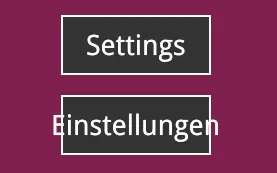
Enabling Auto-Scaling Text
Section titled “Enabling Auto-Scaling Text”Gameface supports a custom CSS property called coh-font-fit-mode. This property instructs the layout engine to alter the font size of the text to fit within its parent container.
The coh-font-fit-mode property accepts three values:
none: The default behavior. No changes to the font size occur.fit: The text font size will grow or shrink to fill the parent container.shrink: The text will only reduce its size if it cannot fit in the container bounds. It will not grow larger than the definedfont-size.
Shrinking The Text
Section titled “Shrinking The Text”Here is how we can fix the overflowing text issue by applying coh-font-fit-mode: fit to the .button-text element:
.button-text { /* 1. Have a defined font size */ font-size: 28px; /* 2. Instruct the engine to shrink the text if it exceeds the box */ coh-font-fit-mode: shrink;}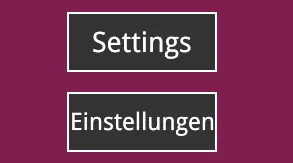
Fitting The Text
Section titled “Fitting The Text”If the UI looks too inconsistent with some languages having smaller text than others, you can use coh-font-fit-mode: fit instead.
This will allow the text to grow as well as shrink, ensuring that it always fills the container as much as possible.
.button-text { /* 1. Have a defined font size */ font-size: 28px; /* 2. Instruct the engine to shrink the text if it exceeds box */ coh-font-fit-mode: fit;}
Defining Size Boundaries
Section titled “Defining Size Boundaries”When using auto-scaling text, you must define constraints to prevent the text from becoming illegible or scaling infinitely.
Gameface provides coh-font-fit-min-size and coh-font-fit-max-size to enforce these boundaries.
coh-font-fit-min-size: Sets the lower limit for the text size. The default value is 6px. The fitting algorithm enforces a hard minimum of 6px; any value set below this will be clamped to 6px.coh-font-fit-max-size: Sets the upper limit when using thefitmode. The default value is 128px.
The Shorthand Property
Section titled “The Shorthand Property”You can declare the mode, minimum size, and maximum size simultaneously using the coh-font-fit shorthand property.
.button-text { /* mode | min-size | max-size */ coh-font-fit: fit 18px 32px;}This way we can ensure that the text always comfortably fits within the container without becoming too small to read or excessively large.

How the Size Is Found
Section titled “How the Size Is Found”Gameface resolves the fitting size with a binary search . It tests the size at the middle of the allowed range, checks whether the text fits, and discards the half that cannot contain the answer. Each test is a full text layout pass, and halving exhausts a range of any realistic width in a small number of them.
The range depends on the mode, and the two modes treat font-size differently:
| Mode | The search runs between |
|---|---|
fit | coh-font-fit-min-size and coh-font-fit-max-size |
shrink | coh-font-fit-min-size and the element’s font-size |
fit mode does not read font-size. The declared minimum and maximum define the entire range.
shrink mode uses font-size as the maximum . Shrinking never enlarges text, so the declared size is the largest the element can render.
The search operates on rounded integers, so the result is always a whole pixel size. This is why a fitted label often stops slightly short of filling its container.
Performance Considerations
Section titled “Performance Considerations”Fitting costs several text layout passes on the first frame an element renders. The search halves, so range width has little effect: the default 6px to 128px span resolves in about seven passes and a tight range in about four. Narrowing the range saves one or two passes.
Two consequences follow:
- The cost is paid at startup rather than per frame. It occurs when the element first renders, and again only when the text, the container size or the relevant CSS changes. A screen of fitted labels costs on the frame it opens and nothing afterwards.
- Declare
coh-font-fit-max-sizeregardless. Gameface writes a console warning each time it falls back to the 128px default, and an explicit maximum records the intended limit.
Text Layout Caching
Section titled “Text Layout Caching”Beyond font fitting, Gameface caches all text layout results in an internal TextBoxDisplayer cache. Before recalculating a text layout, Gameface checks three conditions on each frame: has the text string changed, has the container width changed, and have any text CSS properties changed?
When all three pass, the engine reuses the cached result at near-zero cost. Any change to any one input invalidates the cache and triggers a full recalculation on that frame.
Elements using a fit mode are checked against the container height as well. Fitting depends on both dimensions, so a fitted label re-runs its search when the box gets shorter or taller, where an ordinary label would not have cared.
The practical consequence: avoid writing to a text element’s string unless the value actually changed. A health counter that unconditionally sets textContent every frame triggers a full layout recalculation every frame, even when the displayed value stays at 100/100:
// ❌ Invalidates the text cache every frame regardless of whether value changedfunction onUpdate(newHealth, maxHealth) {    label.textContent = `${newHealth} / ${maxHealth}`;}
// ✅ Cache is only invalidated when the string actually changeslet lastHealth = null;function onUpdate(newHealth, maxHealth) {    const formatted = `${newHealth} / ${maxHealth}`;    if (formatted !== lastHealth) {        label.textContent = formatted;        lastHealth = formatted;    }}
Expensive Text CSS Properties
Section titled “Expensive Text CSS Properties”Several standard CSS text properties shift the engine from a fast character-placement path to a significantly slower one. Each carries a per-frame cost that scales with the number of elements using it and how frequently their content updates.
overflow-wrap: anywhere
Section titled “overflow-wrap: anywhere”overflow-wrap: anywhere forces the engine to test each character position as a potential line break, rather than only whitespace. The per-frame cost is several times higher than overflow-wrap: normal for any string with more than a few characters.
Reserve it for content where unbreakable strings (URLs, technical identifiers, long player names) must not overflow. Use overflow-wrap: normal everywhere else.
/* ❌ Tests every character - several times slower */.player-tag { overflow-wrap: anywhere; }
/* ✅ Tests only whitespace - fast path */.player-tag { overflow-wrap: normal; }
text-overflow: ellipsis
Section titled “text-overflow: ellipsis”text-overflow: ellipsis measures cumulative glyph widths character by character to find the cut point. For a static label, this cost is paid once at layout time. For a string that updates every frame (a live counter, a scrolling notification), it runs again on every update.
text-overflow: clip is cheaper - it cuts at the container boundary with no glyph-level measurement. Use it where truncation does not need to be signalled visually to the player.
/* ❌ Per-character measurement every update - heavy when content changes frequently */.item-name { white-space: nowrap; overflow: hidden; text-overflow: ellipsis; }
/* ✅ Clips at container boundary - no glyph measurement */.item-name { white-space: nowrap; overflow: hidden; text-overflow: clip; }
text-align: justify
Section titled “text-align: justify”Justified text requires two traversals per line: one for initial glyph placement, one to distribute the remaining space across word gaps. text-align: left requires one traversal. Use left or center everywhere the design allows it.
/* ❌ Double traversal per layout change */.lore-panel__body { text-align: justify; }
/* ✅ Single pass */.lore-panel__body { text-align: left; }
Handling Complex Text and Right-to-Left (RTL) Languages
Section titled “Handling Complex Text and Right-to-Left (RTL) Languages”Gameface classifies languages that render right-to-left (such as Arabic, Hebrew, Urdu, or Farsi) or require contextual symbol alterations as complex text .
The engine automatically scans text for complex characters and natively handles the text shaping, cursive joining, and conversion from Unicode data to the appropriate screen glyphs. Implementing complex text incurs a performance cost that must be factored into UI design.
The pipeline for complex text has several additional stages compared to simple LTR Latin text. The engine first splits the string into direction runs using the BiDi (Unicode bidirectional) algorithm. Each direction run is split again by script using ICU (International Components for Unicode). Each resulting segment is shaped independently by HarfBuzz, which resolves the correct glyph forms, advance widths, and any positional adjustments required by combining marks or cursive joining rules. Because line wrapping must operate on the original data order to stay correct, the shaped results are reversed before the line-break pass. If a shaped segment spans a line boundary, it is shaped again.
A single element containing mixed Arabic and Latin content traverses this entire pipeline - font-fallback splitting, BiDi splitting, ICU script splitting, HarfBuzz shaping, reversal, line-break evaluation, and a second shaping pass on any segment that crosses a line break.
For UIs targeting a single locale, keep text elements to a single script where possible. Multiple elements, each containing one script, avoids triggering the full complex pipeline on a mixed-content run:
<!-- ❌ Single element, mixed direction - full complex pipeline --><div class="item-name">سيف حديد Iron Sword</div>
<!-- ✅ Separate elements per script - each on its own path --><div class="item-name item-name--arabic">سيف حديد</div><div class="item-name item-name--latin">Iron Sword</div>Manual Layout Reversal
Section titled “Manual Layout Reversal”While Gameface handles the internal text shaping automatically, it does not automatically mirror CSS layout properties or UI structures. The developer is entirely responsible for reversing the layout to accommodate RTL reading patterns.
Relying solely on the engine is insufficient for structural UI inversion.
To build a localized component, you must manually apply directional CSS properties, such as text-align: right , and utilize properties like flex-direction: row-reverse
to flip the visual order of elements.
<body>    <div class="quest-log">        <div class="icon"></div>        <p class="text">Return to the village elder.</p>    </div>
<div class="quest-log rtl-layout"> <div class="icon"></div> <p class="text">عُد إلى شيخ القرية.</p> </div></body>.quest-log { display: flex; width: 400px; /* Standard English Layout */ flex-direction: row; text-align: left}
/* RTL Layout: Reverses the element order and text alignment */.rtl-layout { flex-direction: row-reverse; text-align: right;}Interactive Text Limitations
Section titled “Interactive Text Limitations”Gameface reliably translates complex Unicode data into drawn shapes on the screen. However, it has limited support for calculating the reverse operation: determining exactly which Unicode data character corresponds to a specific clicked pixel on the screen.
In simple left-to-right text, one character data point typically equals one discrete visual block. In complex text, multiple data characters frequently combine or merge to form a single connected visual shape. Because of this merging, if a player clicks on a connected Arabic word, the engine struggles to calculate the exact underlying data index they interacted with.
This mechanical limitation directly impacts interactive UI elements:
- Caret Placement: When a player clicks inside an
<input>or<textarea>field containing complex text, the blinking cursor (caret) may snap to an inaccurate position. - Text Selection: Dragging the mouse to highlight complex text may result in visual misalignment or select an unexpected grouping of characters.
- DOM APIs: Executing the
caretPositionFromPointJavaScript API on complex text containers will yield unreliable coordinate results.
© 2026 Coherent Labs. All rights reserved.